There are a lot of complications that could stop your TensorFlow from utilizing your GPU. Make sure you carefully go through the following guide below:
What are the steps?
1. Checking out if your GPU is CUDA-enabled
You will need to make sure that your GPU supports CUDA. If your GPU does not support CUDA, then no matter how you tweak the packages, there is just no way that it would work.
Checkout the lists of CUDA-enabled GPUs
2. Installing the required packages for your environments
After making sure that your GPU is CUDA-enabled, make sure that you install the correct versions of Python, CudaToolkit, Cudnn, and TensorFlow.
There may be a lot of setups that could work, for the tested sets you could check here or the internet. The following guide is a set that I found on a thread that worked for me.
In this case, let’s see how we can do it with Anaconda/Conda.
1. Create an environment:
Input your desired environment name at the field [EnvName], the created environment will be with Python 3.9 as the command stated.
conda create -n [EnvName] python=3.92. Activate the environment you just created:
conda activate [EnvName]3. Install the required packages for TensorFlow to run on your GPU:
conda install -c conda-forge cudatoolkit==11.2 cudnn==8.1.0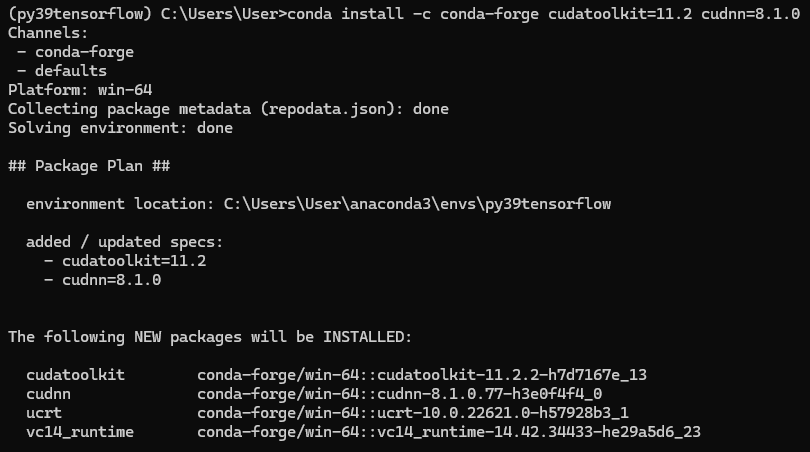
4. Install TensorFlow:
python -m pip install tensorflow==2.10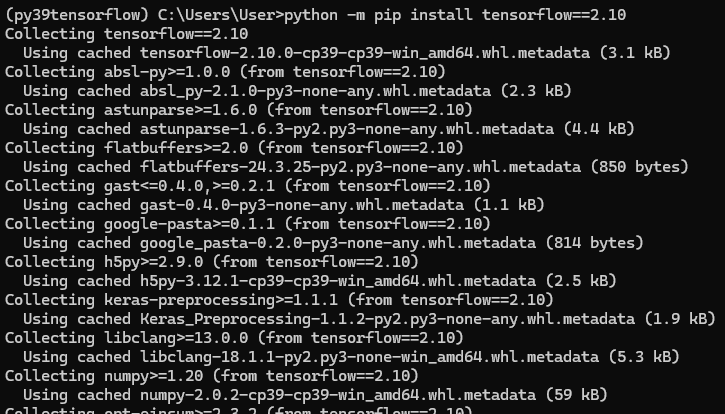
Now you should be all set for testing, you might face some issues for versions/compiling error, let’s see how you can solve them in the next step.
3. Test out the TensorFlow devices.
The last step is to of course test out if TensorFlow successfully utilizes your GPU or not.
Open up your preferred IDE/Notebook and run this python code block:
import tensorflow as tf
print("Num GPUs Available: ", len(tf.config.list_physical_devices('GPU')))
This set of code should have an output like the following if your GPU is successfully picked up:
Num GPUs Available: 1

If the GPU is still not used by TensorFlow, the following output would be displayed:

Next, run the following code block to see all the devices
import tensorflow as tf
from tensorflow.python.client import device_lib
print(device_lib.list_local_devices())
This code block should have an output like the following if your TensorFlow is using your GPU:
[name: "/device:CPU:0"
device_type: "CPU"
memory_limit: 268435456
locality {
}
incarnation: 737559066369438531
xla_global_id: -1
, name: "/device:GPU:0"
device_type: "GPU"
memory_limit: 6272581632
locality {
  bus_id: 1
  links {
  }
}
incarnation: 17973250465245689284
physical_device_desc: "device: 0, name: NVIDIA GeForce RTX 2070, pci bus id: 0000:01:00.0, compute capability: 7.5"
xla_global_id: 416903419
]
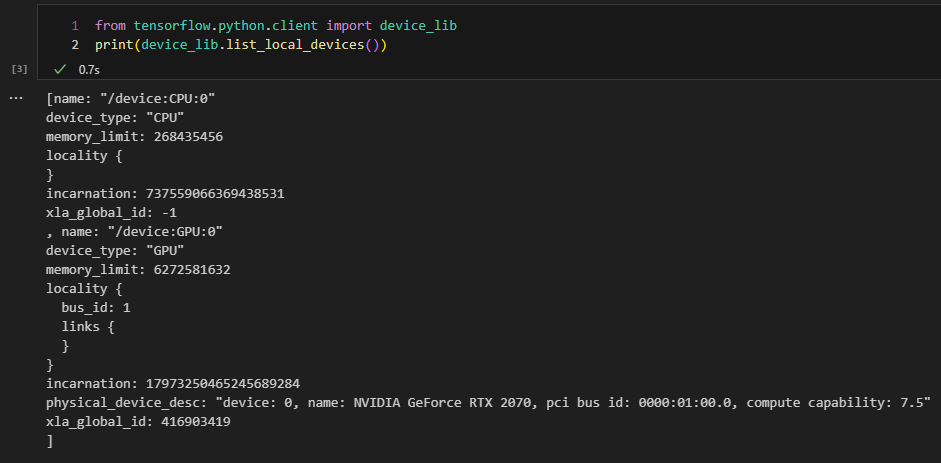
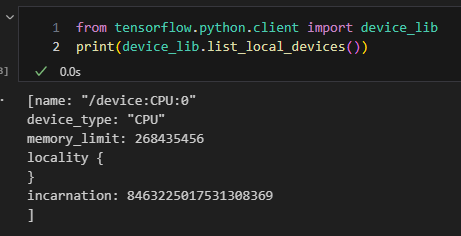
And if unfortunately the GPU is still not being picked up, you should see output like this:
Besides from being able to run the testing code blocks without any issue, I actually bumped into an compiling error when I am only trying to import the TensorFlow package in my Python notebook. There were a lot of errors but the main issue was that a module was compiled with NumPy 1.X and cannot be run in NumPy 2.X as it may crash. The detailed output was kind of like the following:
A module that was compiled using NumPy 1.x cannot be run in
NumPy 2.0.0 as it may crash. To support both 1.x and 2.x
versions of NumPy, modules must be compiled with NumPy 2.0.
Some module may need to rebuild instead e.g. with 'pybind11>=2.12'.

If you are a user of the module, the easiest solution will be to
downgrade to 'numpy<2' or try to upgrade the affected module.
We expect that some modules will need time to support NumPy 2.

Traceback (most recent call last):  File "C:\ProgramData\anaconda3\envs\DEEPLABCUT\lib\runpy.py", line 187, in _run_module_as_main
    mod_name, mod_spec, code = _get_module_details(mod_name, _Error)
  File "C:\ProgramData\anaconda3\envs\DEEPLABCUT\lib\runpy.py", line 146, in _get_module_details
    return _get_module_details(pkg_main_name, error)
  File "C:\ProgramData\anaconda3\envs\DEEPLABCUT\lib\runpy.py", line 110, in _get_module_details
    __import__(pkg_name)
....................................and many lines more......
This issue could simply be fixed by downgrading the NumPy package.
Run the following command in the terminal to get the latest NumPy 1.X package:
pip install "numpy<2"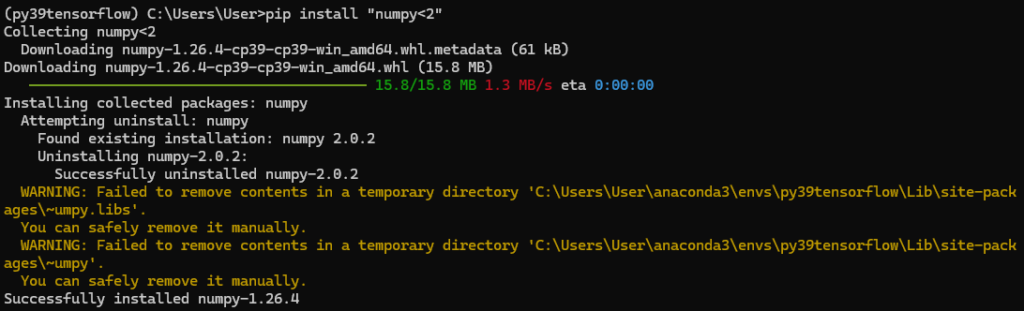
Then Voila! You should be able to run everything with your GPU with no further issues!